Contents
Key plugin features
Custom Price for WooCommerce plugin replaces the standard product price with a field where the customer enters the amount they want to pay. It works well for collecting donations, selling products in a “pay what you want” model, flexible service payments, and subscriptions with an amount set by the customer.
Key plugin features:
- Custom texts and labels – in the plugin settings, you can change the price field label, threshold descriptions, and add-to-cart button texts.
- Custom product price – the customer enters the amount directly on the product page. The entered value is then used as the product price in the cart and order.
- Suggested price – you can display the proposed amount in the description, insert it into the price field, or show it as a placeholder in the field.
- Minimum and maximum price – define the allowed amount range. The plugin will not allow the product to be added to the cart if the customer enters a value outside this range.
- Hiding price thresholds – the minimum or maximum price can be validated without displaying it to the customer.
- Support for variable products – the custom price and its limits can be configured separately for individual variations.
- Editing the price from the cart – the customer can return to the product and change the previously entered amount.
- Subscription support – the custom amount can be applied as the initial and recurring price of a supported subscription.
Demo
On the demo page, you can check how the PRO versions of our plugins work before purchase. You only need a valid email address to create a test account.
Installation
Subscription activation
Main settings
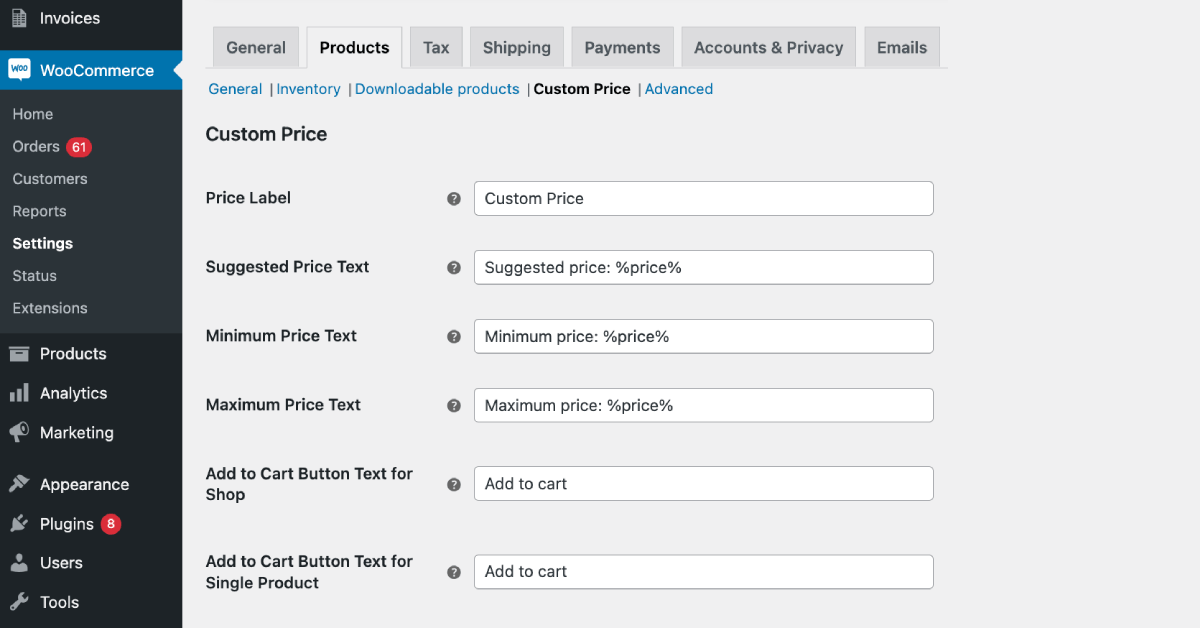
You can find the plugin’s main settings in WooCommerce → Settings → Custom Price. They include fields that let you override labels and field names with your own names. Field names will be visible on the product page for products with the Custom Price option enabled.
Field name - the price field label visible on the product page.
PRO Suggested price description - the suggested price description visible on the product page.
PRO Minimum price description - the description of the lower price threshold.
PRO Maximum price description - the description of the upper price threshold.
PRO Text on the Add to cart for shop button - text replacing the name of the Add to cart button.
PRO Text on the simple product Add to cart for single product button - text replacing the name of the Add to cart button displayed on the simple product page.
Product settings
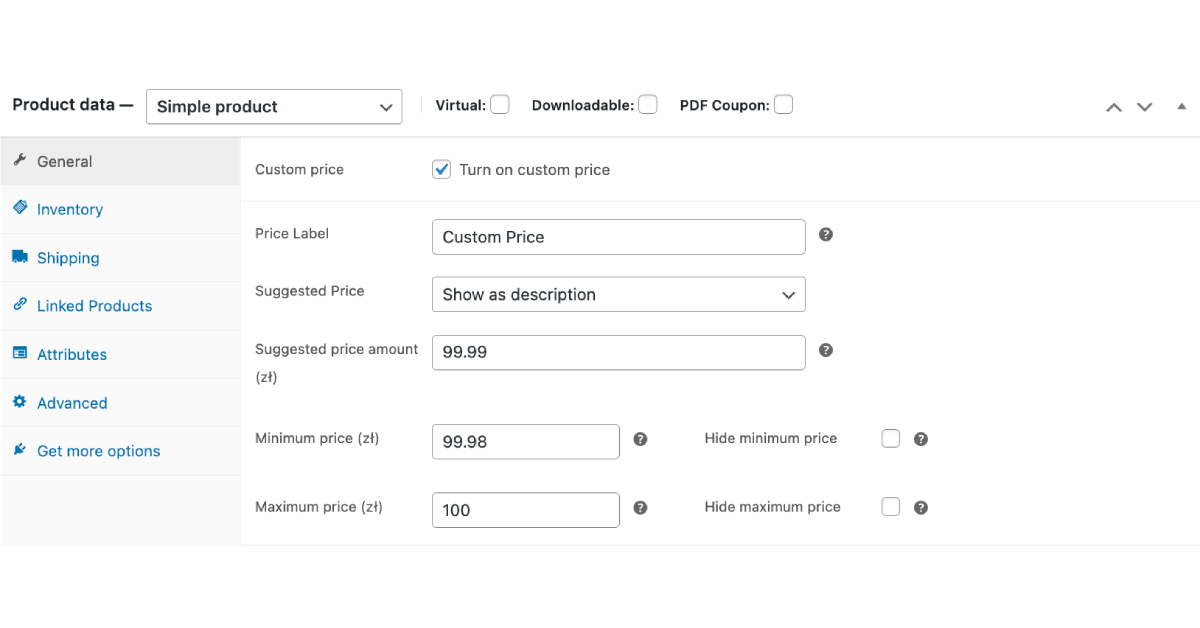
Enable custom price - enable this to display an input field instead of the product price on the product page. The field will allow customers to enter the price amount they are willing to pay.
Field name - the price field label visible on the product page.
PRO Suggested price - choose how the price should be suggested to the customer.
This setting includes the following options:
- Disabled - price suggestion is disabled.
- Show as description - the price suggestion is visible in the price field description.
- Set amount as field value - the price suggestion is shown as a predefined value in the price field.
- Set amount in field as placeholder - the price suggestion is visible as a placeholder in the price field.
PRO Suggested price - the value of the price field that you want to suggest to customers.
PRO Minimum price - the lower threshold for the price field. A transaction below this value will not be possible, and the customer will be informed by a message. The value will be visible on the product page unless it is hidden using the option below.
PRO Hide minimum price - hide information about the minimum price on the product page.
PRO Maximum price - the upper threshold for the price field. A transaction above this value will not be possible, and the customer will be informed by a message. The value will be visible on the product page unless it is hidden using the option below.
PRO Hide maximum price - hide information about the maximum price on the product page.
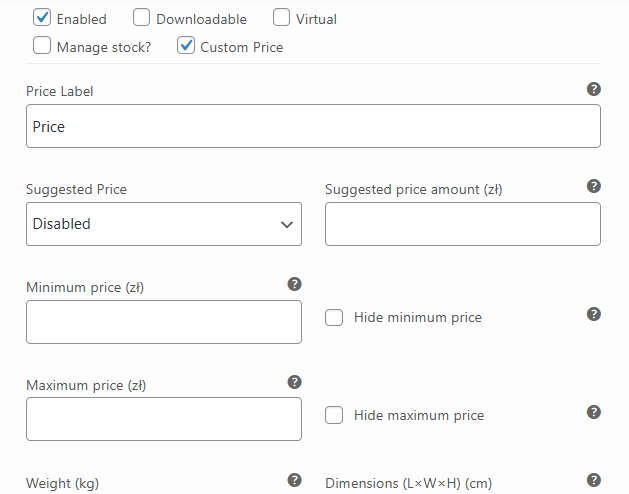
Support for variations
Integrations
The Custom Product Price for WooCommerce plugin supports the following plugins:
- NEW Flexible Subscriptions
- WooCommerce Subscriptions
- Flexible PDF Coupons WooCommerce
- Flexible Invoices
- Flexible Product Fields
Free vs. PRO Feature Comparison
To make it even easier for you to see the difference between the free and pro versions of the Custom Price for WooCommerce plugin, we've prepared a summary table of all the features. Take a look and decide which version you choose.
| Feature | FREE → | PRO → |
| Name your price | ✅ | ✅ |
| Simple products support | ✅ | ✅ |
| Variable products support | ✅ | ✅ |
| Price label input customization | ✅ | ✅ |
| Allows to set the Custom Price label both for all products and for each product and variation separably | ✅ | ✅ |
| Suggested price | ❌ | ✅ |
| Suggested price text | ❌ | ✅ |
| Suggested price as description, as value, or placeholder | ❌ | ✅ |
| Minimum price | ❌ | ✅ |
| Minimum price text | ❌ | ✅ |
| Maximum price | ❌ | ✅ |
| Maximum price text | ❌ | ✅ |
| Hide minimum and maximum Price | ❌ | ✅ |
| Add to Cart button text customization | ❌ | ✅ |
WooCommerce hide price: troubleshooting
The product price is still visible. Why?
To find the cause:
- First, check if Custom Price per WooCommerce is installed and active in Plugins.
- Next, edit the product to see if the Custom Price checkbox is enabled in the Product data section.
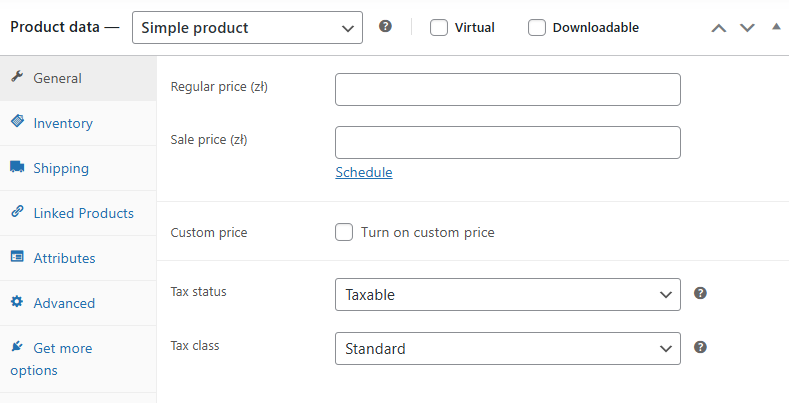
- If the issue occurs for a variation, open the Variations tab and check if the checkbox is enabled for a specific product variation.
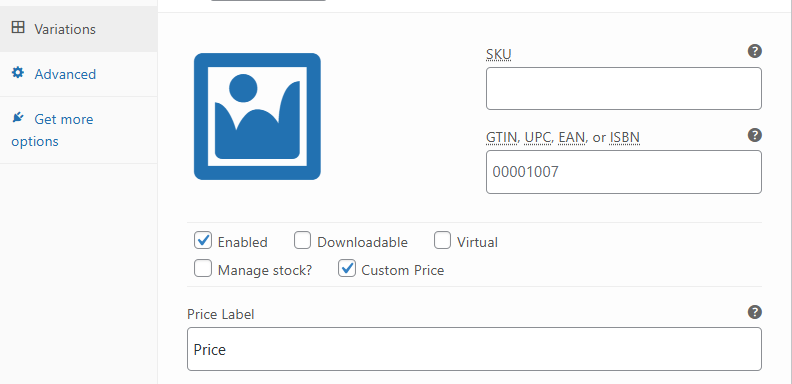
- Save the changes, if the checkbox was previously not enabled, by updating the product.
- If that does not work, try to delete/ refresh the cache for the product.
- Try to use a different browser to check the page after the above steps.
- Check if there is no code in functions.php or no plugins that could interfere with the product price field.
- If so, try to deactivate the plugin or change a theme to a default one (for example, Storefront) to see if that helps. Remember about a backup or trying in a testing environment.
- Finally, you may contact the support team.
Is is possible to have custom product prices and options for variations?
Yes. You may customize a variable product so that only some/ specific variations have a custom price feature.
So, in that case, the dropdown with prices will change according to the variation.
Can one set the custom message for the product price field?
Yes. The plugin allows setting a custom message per product and variations with the price label after enabling the Custom Price feature per product or variation.
The option is available in PRO.
You may customize the button by changing the text in the plugin settings: WooCommerce → Settings → Custom Price tab. It will work for all products in the shop catalog or single products.
It's possible to overwrite the text per specific product or variation by editing WooCommerce products and their Custom Price field settings.
If you set a different text but the add to cart button text does not change, follow the above steps that are similar. Remember that changing the add to cart button text feature is available in PRO. It's possible that after buying the PRO version of the plugin, the free version is still in use. You may check it in Plugins.
First, you may set the price label, for example, to inform that it will be a quote request. It's also possible to set the custom description for minimum/ maximum or suggested price. Finally, you can replace the add to cart button text.
Such quotes still use the price so after the purchase a standard WooCommerce order would be created rather than a special one. In that case, an administrator would need to check the incoming orders for quotes.
Roadmap
The plugin is continuously developed. Below, you will find two ideas that we may implement in the plugin.
- Adding support for price thresholds and quick amount changes in the price field.
- Different ways to present price thresholds
Worth reading
- https://wpdesk.net/blog/woocommerce-name-your-price/
- https://wpdesk.net/blog/custom-price-based-on-user-input-in-woocommerce/
- https://wpdesk.net/blog/woocommerce-add-to-cart-button
- https://wpdesk.net/blog/add-product-to-cart-with-custom-price
- https://wpdesk.net/blog/how-to-enable-custom-price-calculation-in-woocommerce-product
- https://wpdesk.net/blog/change-woocommerce-shop-page/
